


We’ve all been there. You start with a productivity tool, full of hope, only to find yourself six months later spending more time maintaining the system than doing the actual work. You end up with a chaotic web of disconnected notes, scattered task lists, and a feeling that your Personal Knowledge Management (PKM) system is actively working against you.
Today, I’m introducing CUBE (Capture, Understand, Build, Execute): A frictionless, context-aware protocol designed from the ground up for Obsidian, ready for those who still like the old way of doing stuff but also ready for the age of AI… it’s timeless!
No matter how you locate yourself in the trends, this system adapts to you.
CUBE relies on a fluid-yet-hierarchical structure that mimics the neural pathways of your brain. It ensures that every tiny task is anchored to a piece of information, and every piece of information is anchored to a high-level concept. That’s the core of the framework, any other piece of structure built into it is there for convenience, however adhering to them is not strictly mandatory.
Here is how to build it…
🏗️ The Core Architecture (The 3 Tiers)
CUBE is built on a strict “Map of Content” (MoC) pipeline consisting of three tiers:
Concepts (The Hubs): Your master dashboards for major areas of focus, projects, people, or recurring events (e.g.,
[[Homelab Overhaul 2026]]or[[John Doe]]). They sit at the top of the hierarchy to give you a bird’s-eye view. A concept is always accompanied by a Canvas file and a Base file (more on these later)Items (The Raw Material): The spokes! (Your captures); Articles, meeting notes, PDFs, AI chat logs and every other piece of information you save to Obsidian can become an Item. Every Item contains a
Conceptlink pointing directly to its parent higher order concept hub.Tasks (The Actionables): Action items are handled as Inline Tasks (
- [ ]). We do not create separate task notes. You write them directly inside your Items. This keeps the action visually tied to the exact context that spawned it through the Item.
The 4 Stages of Workflow
Capture: Dump everything into your
00_Inboxfolder.Understand: Process your inbox into Items by filling out native YAML Properties (Category, Format) and linking the note to a Concept Hub.
Build: Extract actionables by writing inline tasks (
- [ ] Buy cables #p1) directly in the note.Execute: Use your Daily Note Dashboard to keep track of your daily progress regarding projects. List your priorities for the day and tackle them, make use of backlinks to associate your concepts and items accordingly.
📁 The Setup Guide
Because Obsidian relies heavily on search and links, we keep the folder structure mostly flat. Use numbers to enforce sorting (if desired):
00_Inbox: The ultimate capture zone.
10_Categories: Broad domains of responsibility (e.g., Coding, Work, Personal, etc.); Items get organized into category folders as they’re processed (however you can also choose to just archive them if that’s more your style).
20_Concepts: The dedicated home for your high-level dashboard notes. A concept is always a folder containing the concept note itself, a base and a canvas related to it.
90_Archive: A vault for your Vault. Either cold storage for inactive notes, a place for orphaned notes and/or the place where everything goes after being processed, your choice.
💡 Pro-Tip for Fast Setup: Don’t build this manually! The easiest way to start with this system is to download the Vault below and extracting it in your system to be used by Obsidian.
⚙️ The Templates (The Engine)
You only need 3 templates to run your entire life. They rely on Obsidian’s YAML Properties (frontmatter) to make your vault machine-readable.
1. The Item Spoke Template
Use this for 90% of your notes: web clippings, one-off meeting notes, PDFs, and random thoughts.
Properties: Includes
Type: Item, Category, Format, Date and the crucialConcept: [[Concept]]link.Content: Features a Summary section for a quick TL;DR, a Notes section for the raw data or additional captures, and an Actionables section where you write your inline Tasks.
The template itself:
---
Type: Item
Category: Templates
Concept: "[[tpl-concept-hub]]"
Format: Template
Date: {{date}}
---

# {{title}}

**Source/Link:**

## ⚡ Summary / TL;DR


---

## 🧠 Notes & Captures


---

## ✅ Actionables

- [ ]
2. The Concept Hub Template
Use this for your projects, people, or broad domains. Recurring meetings can be classified as concepts too. A concept is always enclosed in its respective folder with an Obsidian Base (.base file that holds a reference to all the items linked to that concept) and an Obsidian Canvas (.canvas file for easy visualization and management of the internal connections relative and related to its items)
Properties: Includes
Type: Concept, Category, Date, andStatus: Active.Content: Features a Description statement and one Obsidian Base block titled Knowledge Base to aggregate all linked Items (The canvas link is also available there for convenience). You also have a Related Concepts section to build up your network of connected ideas.
The template itself:
---
Type: Concept
Category: Templates
Status: Active
Date: {{date}}
---

# {{title}}

**Description:**

*Write a 1-2 sentence definition of what this concept/project is about: its goals, purpose, etc.*

---

## 🗂️ Knowledge Base
*All captures and items anchored to this Concept.*

> [!info] Item Base
> **Insert a Base View here**
> Filter: `Type: Item` AND `Concept: [[{{title}}]]`
> *(This will automatically display every Item note that you linked to this Hub)*

![[10_Categories/Templates/tpl-concept-hub/tpl-concept-hub.base]]

**Canvas:** [[tpl-concept-hub.canvas]]

---

## 🕸️ Related Concepts

- [[ ]]
- [[ ]]
3. The Daily Note Template
Your daily command center for Execution and Capture.
Properties:
Type: Dailyand Date.Content: Features a Quick Capture scratchpad so you don’t break focus, an Execution section featuring a place to organize your day in tasks, a Daily Log section for journaling, personal introspection or outlining timed events and an End of Day shutdown checklist.
The template itself:
---
Type: Daily
Date: {{date}}
---

# 📅 {{date}}

## 📥 Quick Capture (The Daily Inbox)
*Dump your quick notes here. Process them later into proper Items if needed.*

-

---

## 🎯 Execution (Today's Priorities)
*Your daily task list. Check these off as you work throughout the day.*

- [ ]

---

## 📓 Daily Log & Timeline
*Bullet journal your day here. Log events, decisions, or fleeting thoughts.*

- **09:00** -

---

## 🔄 End of Day Shutdown (Review)
- [ ] Review **Quick Capture** section above (Convert to Items, archive or delete)
- [ ] Process `00_Inbox` (Move Items into Categories, archive or delete)
- [ ] Update status/priority tags on any lingering **tasks** here or in your Items
🤖 Supercharging CUBE: Giving AI the Keys
If you use AI tools to summarize articles or transcribe meetings, pasting raw AI text into your vault usually creates disorganized “text sludge”; CUBE solves this! Because it relies on strict YAML Properties and standard Markdown, it is highly machine-readable. By using a command-line AI agent (like gemini-cli or claude code), you can place a master instruction file (GEMINI.md/CLAUDE.md) directly in the root of your Obsidian vault teaching it your exact taxonomy. Here you have a sample file you can use as a template:
You can feed the agent a chaotic meeting transcript and it will automatically generate a perfectly formatted Item note, assign the correct YAML (with Format: Meeting), add the bi-directional link to the Concept related to it (Concept: [[Project Name]]), then extract native inline Tasks (- [ ] Send the report #p1) for the item.
Let’s discuss how!
Example AI Prompts for CUBE
If you are passing data to an AI agent configured for your vault, use prompts like these to achieve zero-touch processing:
Prompt 1: The Article Processor
“Read this article URL. Create a new note using the Item Spoke structure. Set the Category to ‘AI/ML’ and Format to ‘Article’. Write a 2-sentence summary, extract the key arguments into bullet points, and link it Up to the [[Artificial Intelligence 2026]] concept.”
Prompt 2: The Meeting Extractor
“Analyze this raw meeting transcript. Format it as an Item Spoke with Format: ‘Meeting’. Link it Up to [[Client X]]. Do not give me a generic summary of next steps; instead, write explicit inline markdown checkboxes for every action item mentioned, appending the #p2 tag to each.”
Prompt 3: Generic
“Read the ‘PROMPT.md’ file and process this [Input] accordingly.”
🧹 Weekly Maintenance (Keeping it Clean)
To prevent your system from turning into a chaotic web, perform a 10-minute scrub once per week:
Inbox Zero: Ensure every note in
00_Inboxhas Properties assigned to it and that it is linked Up to a Concept, then move it to10_Categoriesas needed or archive it.Task Scrub: For any ongoing project/concept, review your list of tasks in the related items. Demote stale
#p1tasks to#p3, or delete the checkbox entirely if you are never going to do them.Concept Audit: Change completed projects to
Status: Archivedand move them to the90_Archivefolder to keep your active dashboards clean.The Orphan Hunt: Open Obsidian’s Graph View. Spot any nodes floating completely disconnected from the main clusters. Click them and assign an appropriate link so they rejoin the ecosystem (or if needed, just archive/delete them).
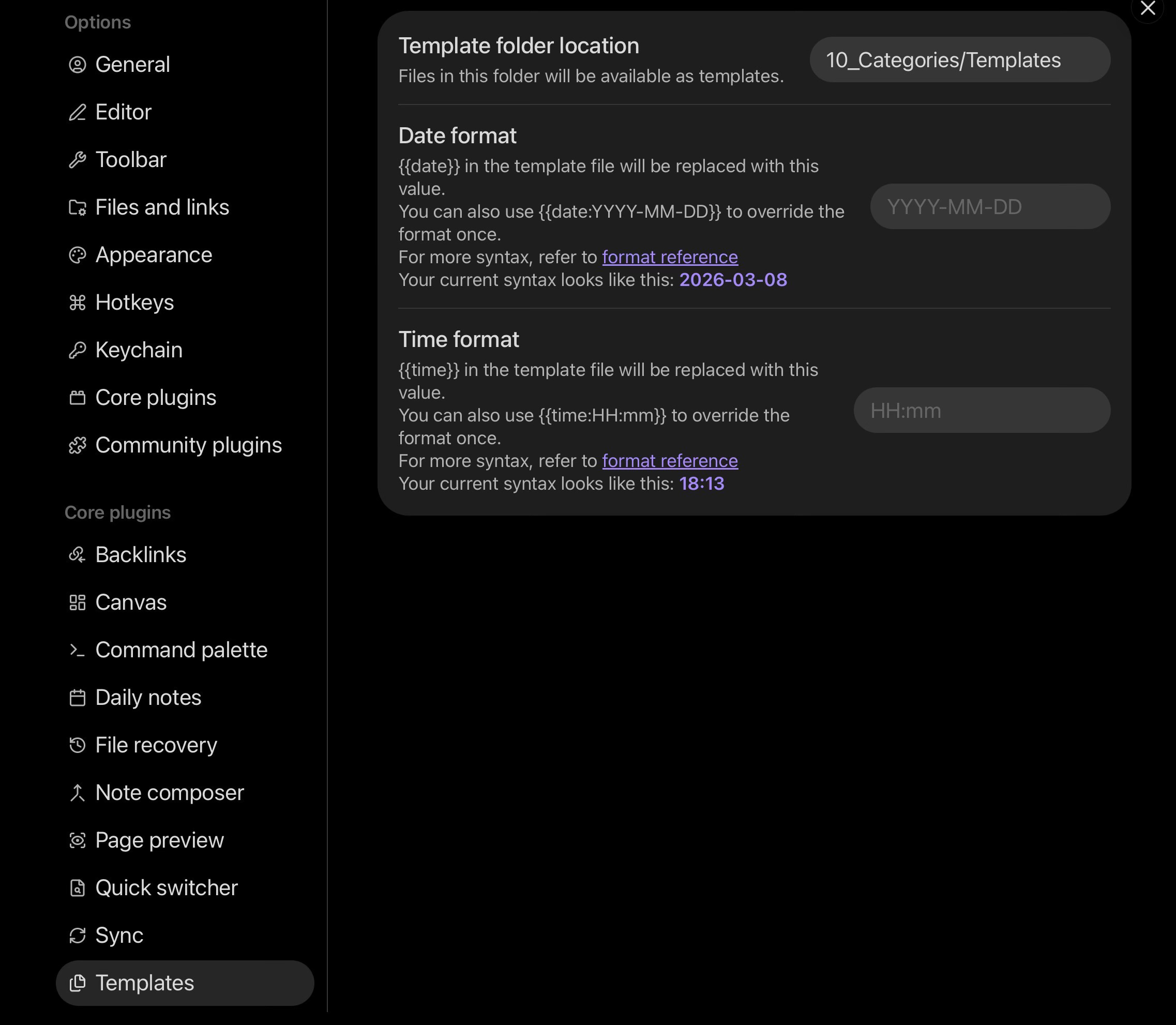
Settings I recommend
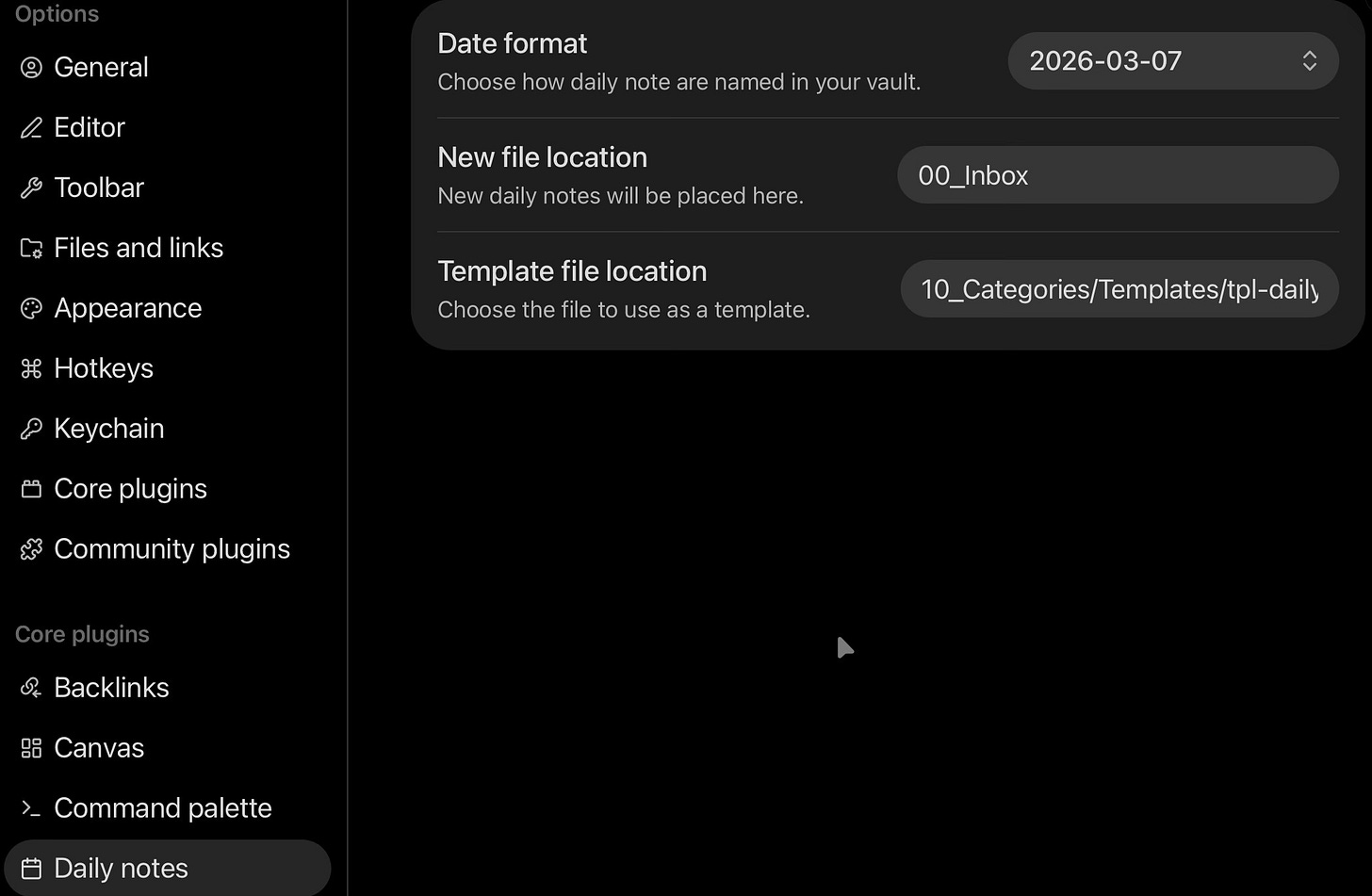
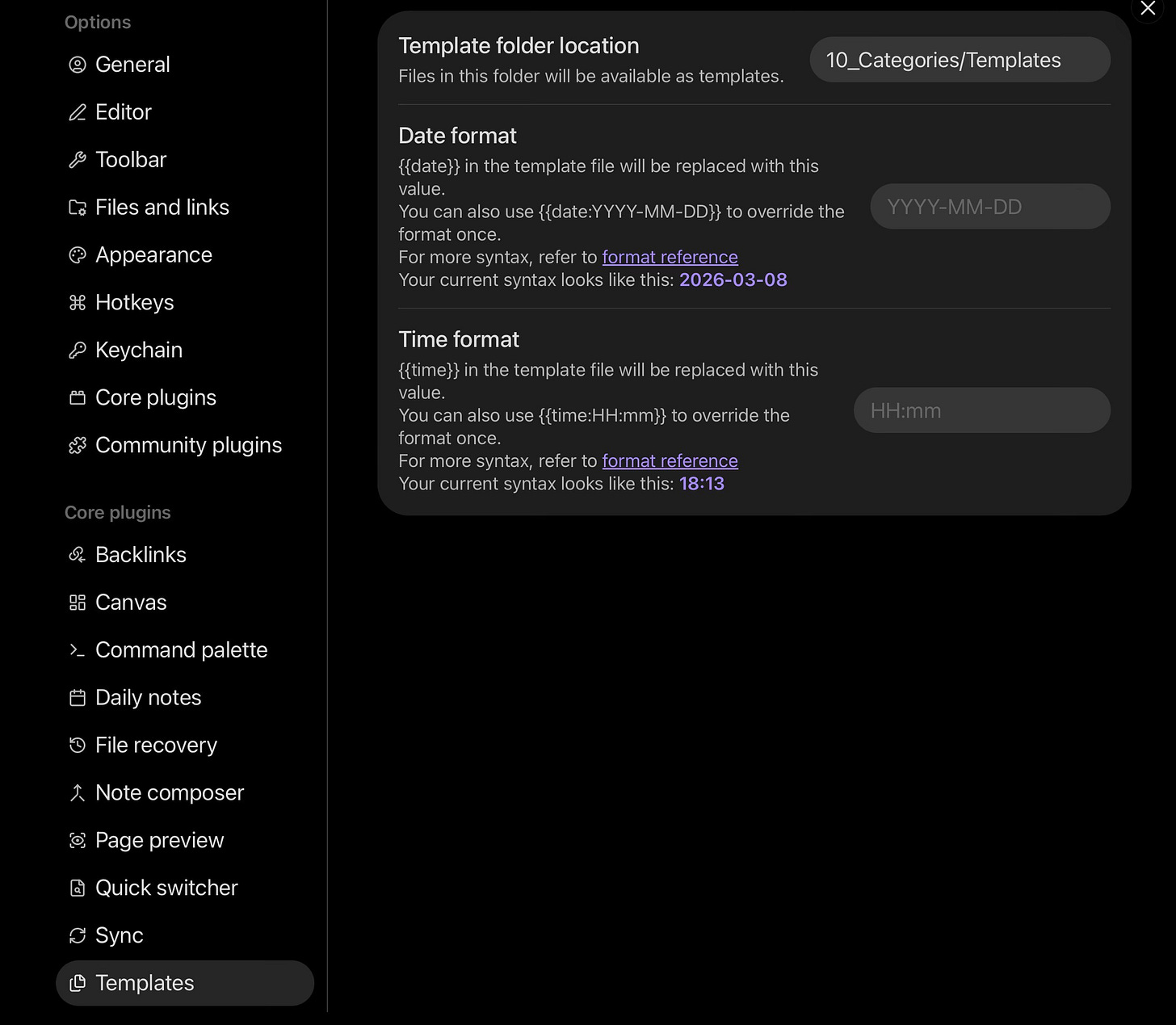
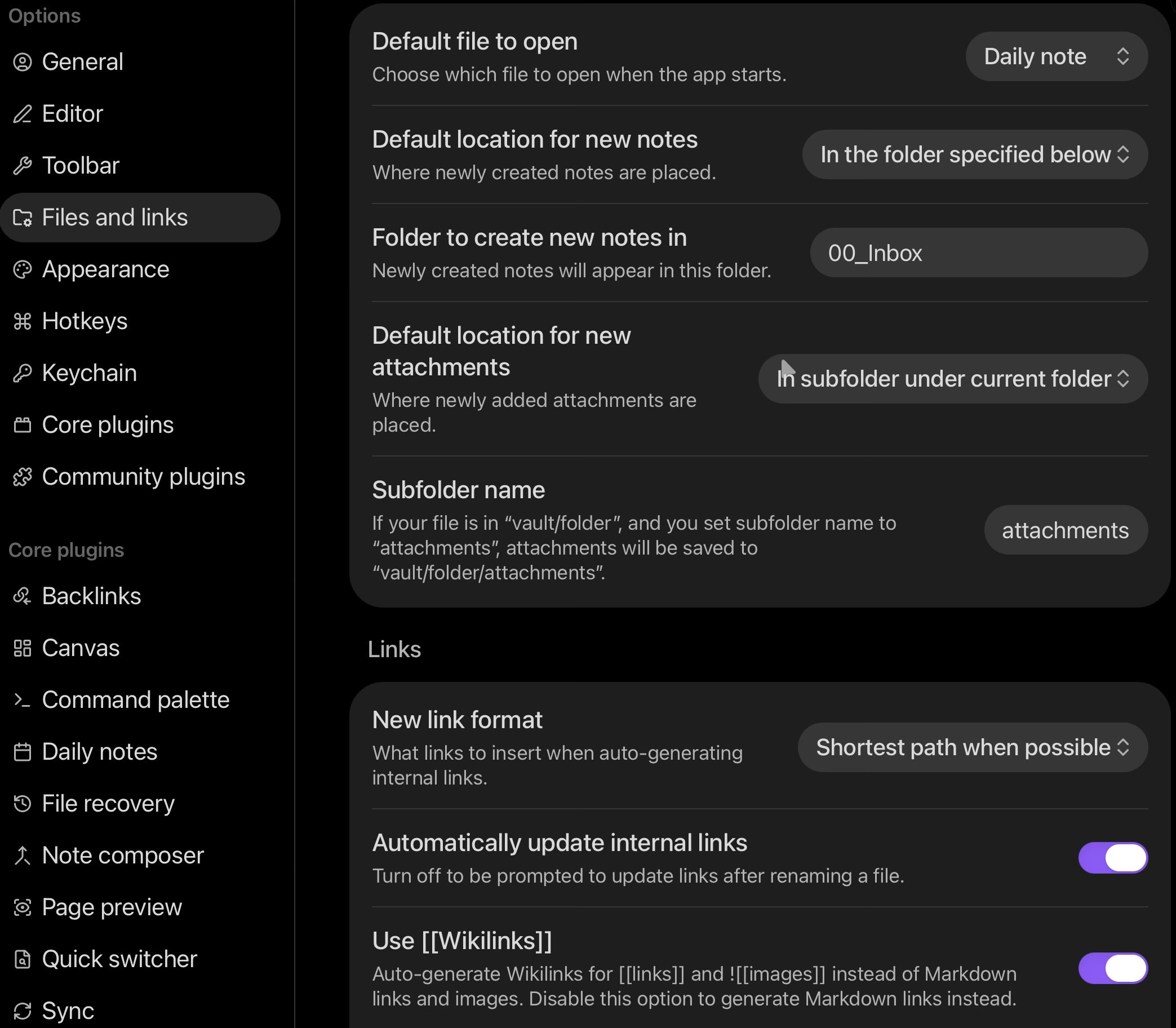
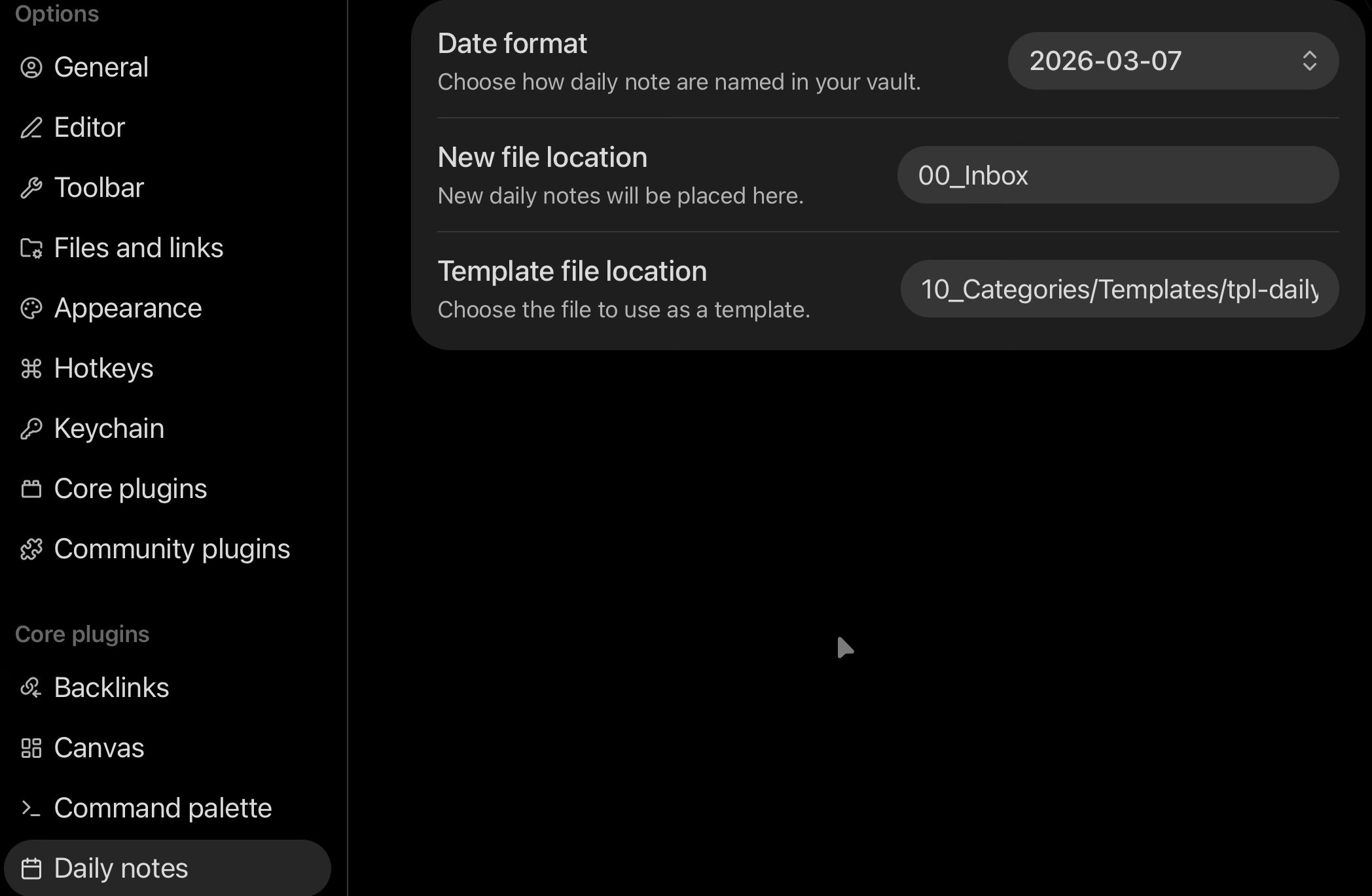
I know that Obsidian settings can get very personal, that’s why I will mostly focus on recommendations that specifically leverage the CUBE system, check the screenshots below:
Files and links settings

Daily notes settings
Templates settings
Personal Advice: Don’t sweat it!
CUBE is not a rigid system. It is a framework that aims to help you find the connections between your thoughts and transforming such connected thoughts into tangible actions that deliver results for you. That process cannot happen in rigidity. It can only happen in a flow state.
That’s why I say: Don’t fear the orphans! Although I’m a firm believer that anything can be turned into an Item and every item is part of some Concept and thus can also belong in some Category (no matter how broad), I also think not everyone should strictly process everything they capture if they don’t feel like doing so. Perhaps for you a specific capture is not worth an item note. Perhaps for you, an item should not be categorized or perhaps you haven’t found a concept you’d want to use for such item (although this last one would be more difficult to come by, more so if you decide to use AI to help you create the notes but it could still happen);
In such cases remember:
Your Archive is the vault for your Vault. Send such notes to the Archive. At some point as you look at your knowledge graph the connections would naturally reveal themselves.
About the Graph View
This is how a linked concept will look like in your Knowledge Graph:
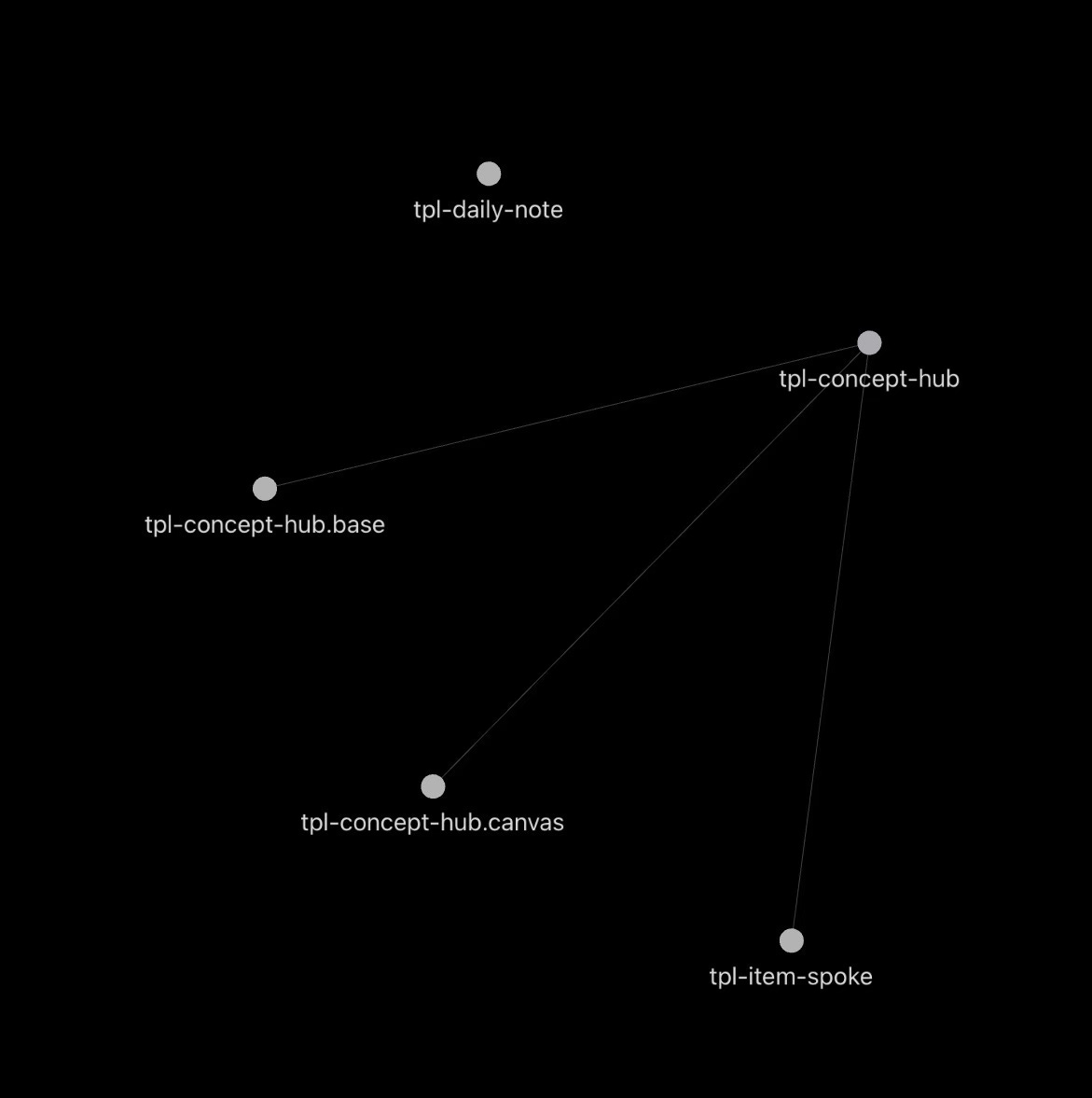
P.S. you can use the filter
-path:"10_Categories/Templates"in the graph view to hide the templates folder from it in order to prevent unnecessary clutter.
Ready to build your CUBE?
Stop managing notes. Start achieving results!
Drop the starter vault into Obsidian, go with the flow, and experience the power of a system that finally works with you. Let’s C.U.B.E. the chaos together.
I can’t wait to hear what you create with it.